Everything on the receiver page
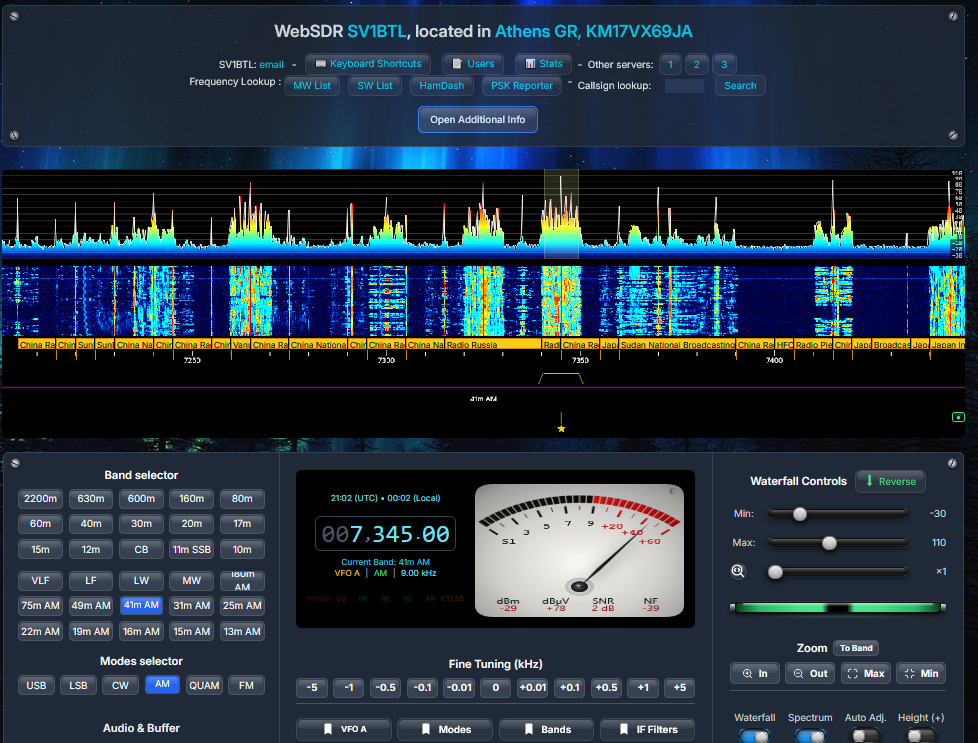
Open the receiver's address in a browser and you are on the air. These are the tools a listener gets — nothing to install, and every setting is remembered in your own browser.
Four ways to get on frequency
- Click the waterfall — a frequency readout follows the mouse for precise tuning.
- Type it — click a digit of the frequency display, then use the arrow keys or type the digit.
- Roll the wheel — over the frequency display it steps by the band's step; over the waterfall it zooms, or tunes with Ctrl/Shift held.
- Buttons — fine-tuning steps, wheel-step presets and a band selector built from the operator's own band plan.
Picking a band or a digital mode sets the sideband and passband for you. The address bar keeps your frequency and mode, so a reload or a shared link lands on the same signal.
Every common mode, and a few rare ones
📶S-meter, analog or digital
Choose a needle meter with three faces (dark, amber, vintage) or a digital bar, both with dBm, dBµV, SNR and noise floor read straight from the spectrum. Above 30 MHz the scale switches to VHF S-units.
🟢Magic Eye
A signal-strength indicator that behaves like the EM84 tuning tube of a vintage receiver.
Noise controls that you set by ear
Each control attacks a different kind of noise and they combine freely. None of them reach the decoders — those read the raw audio — so you can tune them purely for listening.
NRNoise reduction
Spectral noise reduction that protects steady tones, so a CW note or a carrier survives. Typically 10 dB less hiss between words.
NBNoise blanker
Silences clicks, crashes, ignition and power-line spikes about a millisecond at a time, with 50/60 Hz hum notches.
NSBackground suppression
Measures the band's own floor over a few seconds and lowers the hiss without the "underwater" sound.
ANAuto notch
Finds and removes heterodynes, carriers and birdies — several at once, and it follows a drifting one.
AIAI noise reduction
RNNoise, a small neural network trained on voice, running in your own browser. Up to about 20 dB less hiss on SSB and AM speech.
SQSquelch & CTCSS
Automatic or manual squelch, and on FM a pop-up picker with the 49 standard subtones.
AGC modes
Auto, Fast, Smooth and Adaptive, to suit AM, SSB or weak-signal work.
Compressor & equaliser
Built-in, with manual settings and a reset, plus a selectable noise gate with presets.
Low latency
FLAC or Opus at 16 bit, played the moment each packet arrives. The buffer sizes itself to your connection — about 140 ms on a phone over Wi-Fi.
Sweep a band, stop on a signal
The scanner on the fine-tuning row walks the band — or exactly what the waterfall is showing — and stops on the first channel standing a chosen number of dB above the band's noise floor.
- Steps on the mode's own channel grid: 1 kHz SSB, 5 kHz AM, 9/10 kHz on medium wave.
- Skip empty reads the spectrum and jumps straight to the signals.
- Resumes by itself once the channel goes quiet; a maximum stay stops a carrier holding it for ever.
- Lock out birdies and permanent carriers with one click.
7 152.0 ◀ ■ ▶ ⊘ 30 dB · 4 ▾
Scan down / stop / scan up / lock out, and the threshold with the level being measured right now.
A waterfall you can read
🌈Colour maps & auto levels
Custom colour maps, adjustable min/max, zoom slider and an automatic level adjustment. Spectrum and waterfall can be reversed.
🗺️Band-plan overlay
Coloured band segments with their own brightness, range and visibility, and station labels from the operator's frequency lists.
🎚️Audio spectrogram
A live picture of the audio passband, handy for placing a filter or spotting a tone.
🧩Four layouts
Analog or digital S-meter, in two layouts, switched from the ⚙️ menu without reloading — audio and decoders keep running.
👥Who is listening
A live list of listeners with location, map and statistics over chosen periods. Your own session is marked you; click another to tune where they are.
💬Chat
When the operator enables it, with a ↪ Reply button on every message and threaded answers, on desktop and on /mobile.
🔖Bookmarks
Save a frequency with its mode and even its CTCSS tone, with an optional label shown on the waterfall. Export them to a file — or to a QR code — and import them into any other PhantomSDR-Plus receiver or another device.
⏺️Audio & video recording
Record the audio, or a video of the whole waterfall or a region you select together with its audio, straight from the page.
🔎Look-ups
Medium-wave and short-wave station lists, HamDash, PSK Reporter, WSPRnet and a callsign search in the page header, plus an integrated DX Cluster and FreeDV Reporter.
⌨️Keyboard shortcuts
Select a digit and step it with the arrows, type digits in place, and use modifier keys with the mouse wheel for 1 kHz and 10 kHz steps.
Two views for phones
Open the receiver on a phone and the page switches to a touch layout with the waterfall and the full controls, all by itself.
For a limited data plan there is /mobile: a separate, much lighter page with no waterfall. It opens only the audio stream — about 30 MiB an hour against 68 MiB for the full view — and its first load is a third of the size.
- Frequency entry, steps, modes including SAM and RADE, S-meter bar, volume, squelch, AI noise reduction and buffer.
- Band buttons, bookmarks, the listener list and chat.
- Switching between views keeps your frequency and mode.
the data of the full interface, measured on a live receiver
Keep your transceiver and the receiver in step
Turn the rig's dial and the waterfall follows; click a signal and the rig tunes to it. Only your own session moves — nobody else on the receiver is affected.
TCI-CAT
A button on the receiver page talks directly to the TCI server of ExpertSDR, AetherSDR or Thetis on your computer. Frequency, mode and filter follow both ways, and the page goes quiet while you transmit. Any Hamlib rig works through the included bridge.
Desktop PhantomSDR+
A desktop application with a Rig menu: built-in drivers for Icom, Yaesu, Kenwood, Elecraft, FlexRadio and QRP Labs, plus over 300 rigs through Hamlib, rigctld or flrig. It also drives KiwiSDR, PA3FWM WebSDR and UberSDR receivers.
CATsync Tool
The CATsync Tool for WebSDRs (Windows) couples a rig to the page open in your browser and syncs frequency and mode.
🔀Receive diversity
Pair the receiver with a second site — another PhantomSDR-Plus, a KiwiSDR, an UberSDR or a WebSDR — and hear whichever of the two has the better signal at each moment. It runs in your browser.
🥝KiwiSDR clients welcome
Where the operator enables it, Kiwi software such as AetherSDR and kiwiclient can connect to the receiver directly, with real retuning, waterfall and S-meter.
Try it now
The full user guide covers every control on the page, the modes, keyboard shortcuts, bookmarks and troubleshooting.